Free & open source · nothing to install
The online paint app I open
when a design has to be done now.
Not every design job deserves a 4 GB install and a splash screen. Most of them are a crop, a couple of shapes, a label, and an export. Pinta Online is a free online paint and photo editor that does exactly that work — in a browser tab, on any operating system.
Fast to start
It's lightweight
But nowhere near barebones
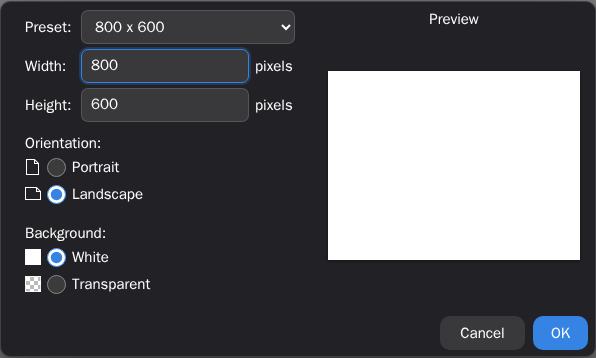
There is no installer, no update prompt, and no first-run tour. You open a tab, press Ctrl/⌘+N, pick a canvas size, and you are drawing. Because the editor runs on HTML5 canvas rather than a desktop toolkit, an old laptop or a school Chromebook gets the same workspace a new workstation does.
- Opens in seconds on modest hardware
- Familiar Paint-style layout — no learning curve
- Dark and light themes that remember your choice
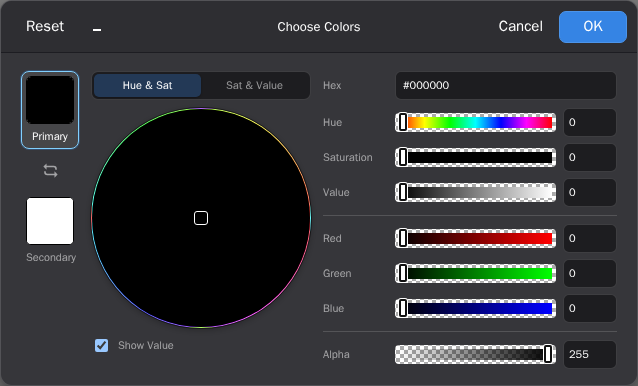
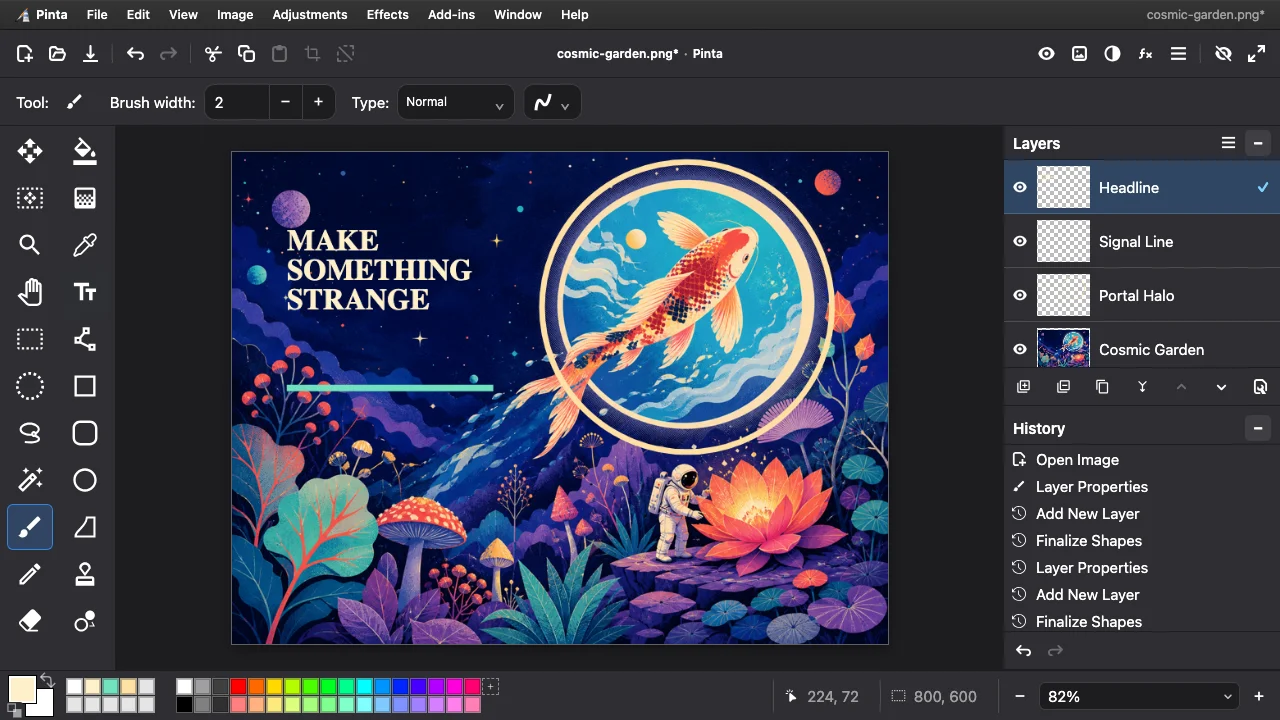
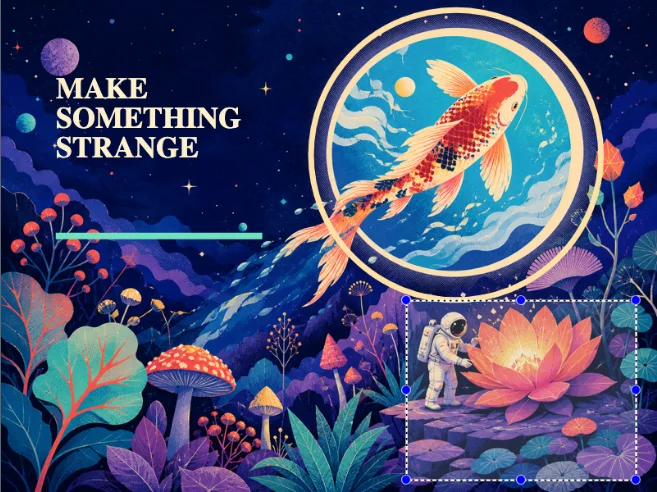
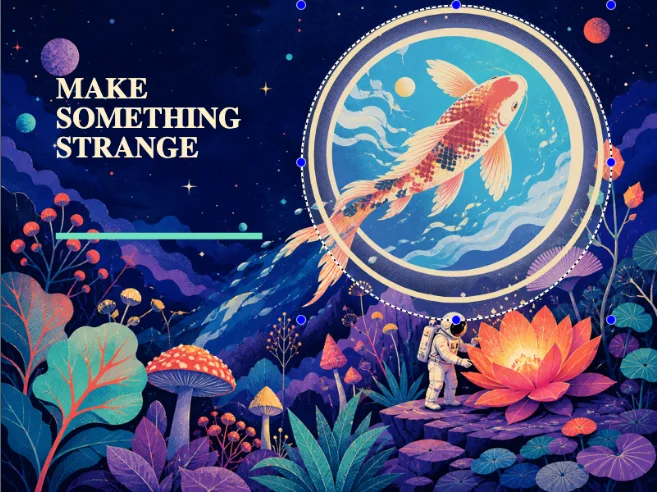
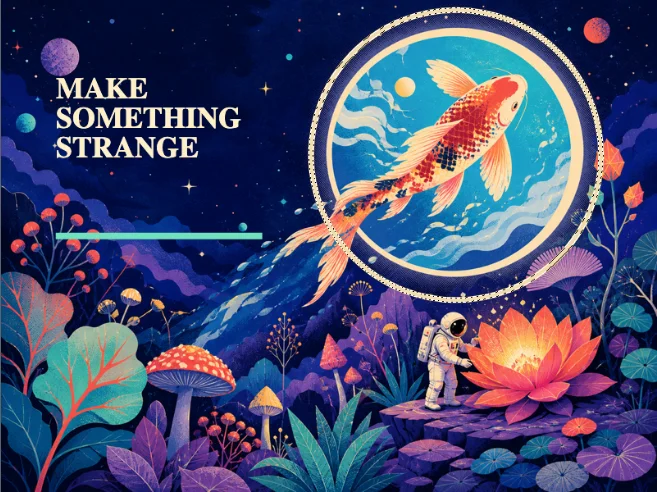
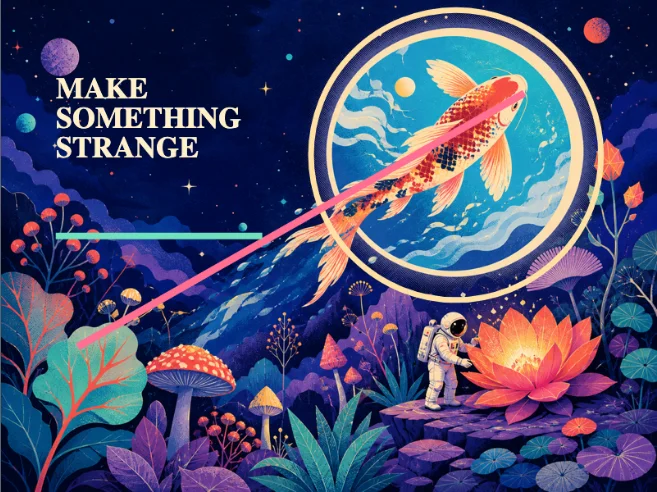
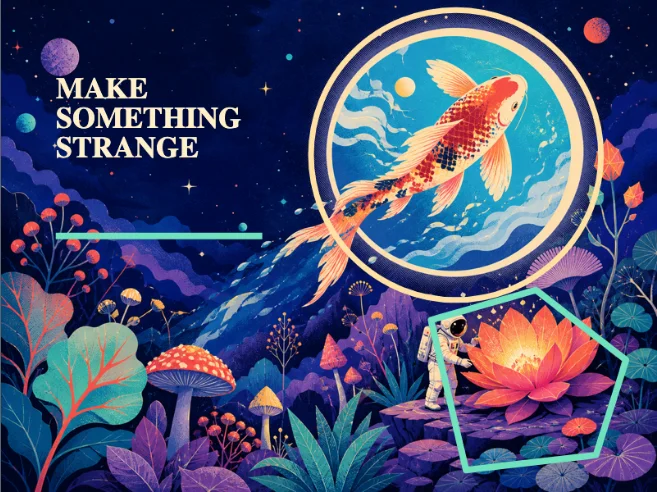
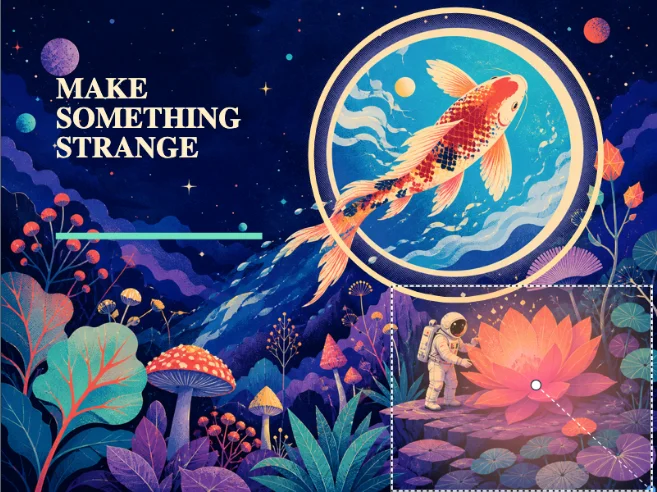
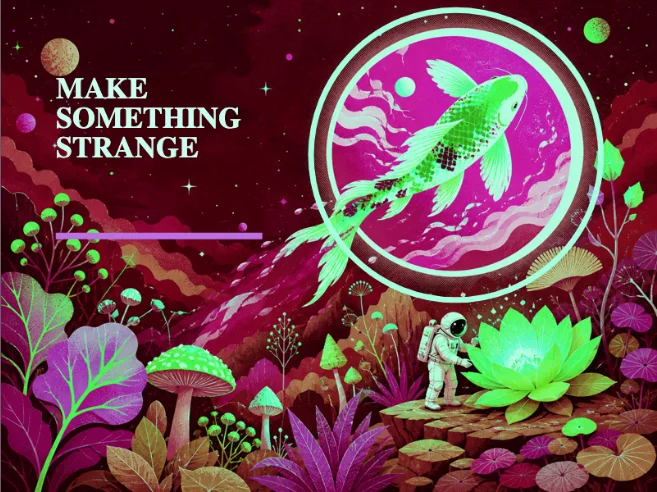
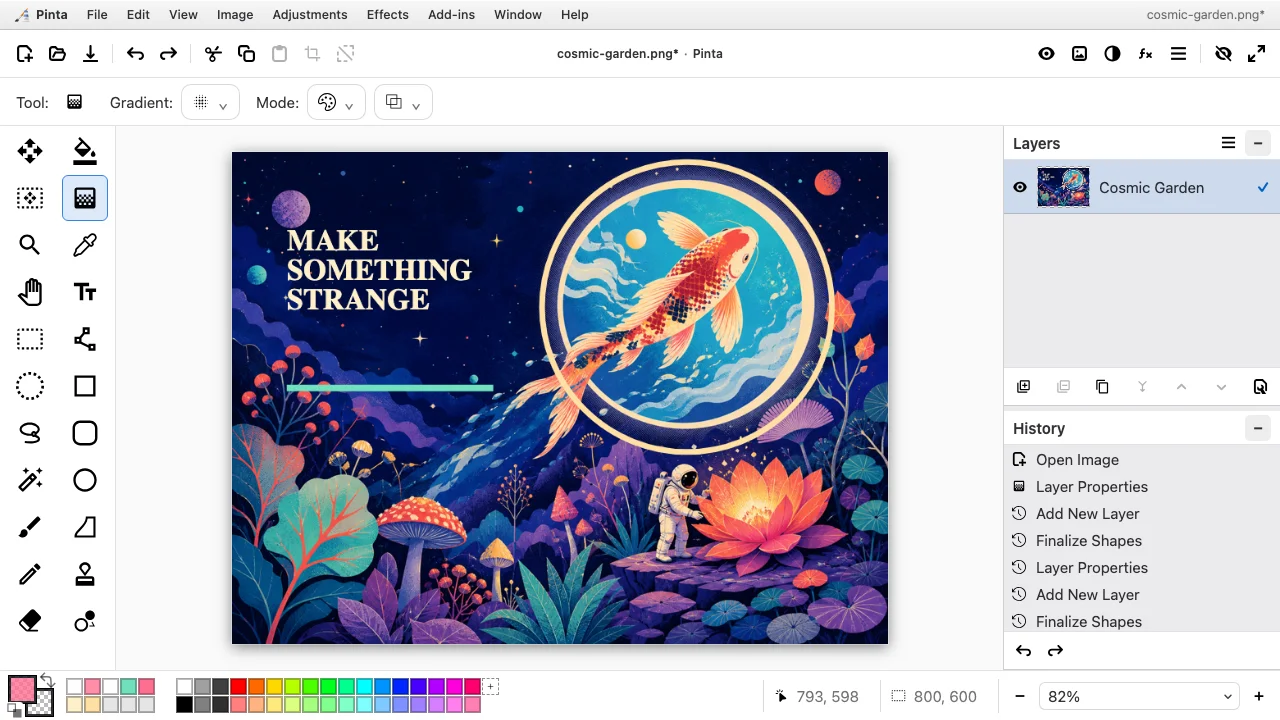
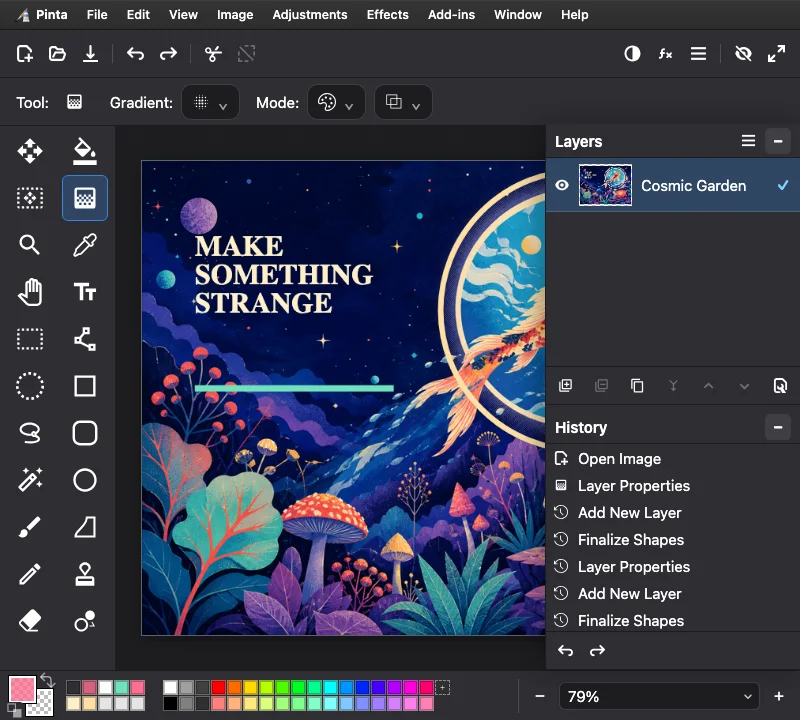
Four steps, one strange little world — every frame is the same document, one editable layer further on.
-

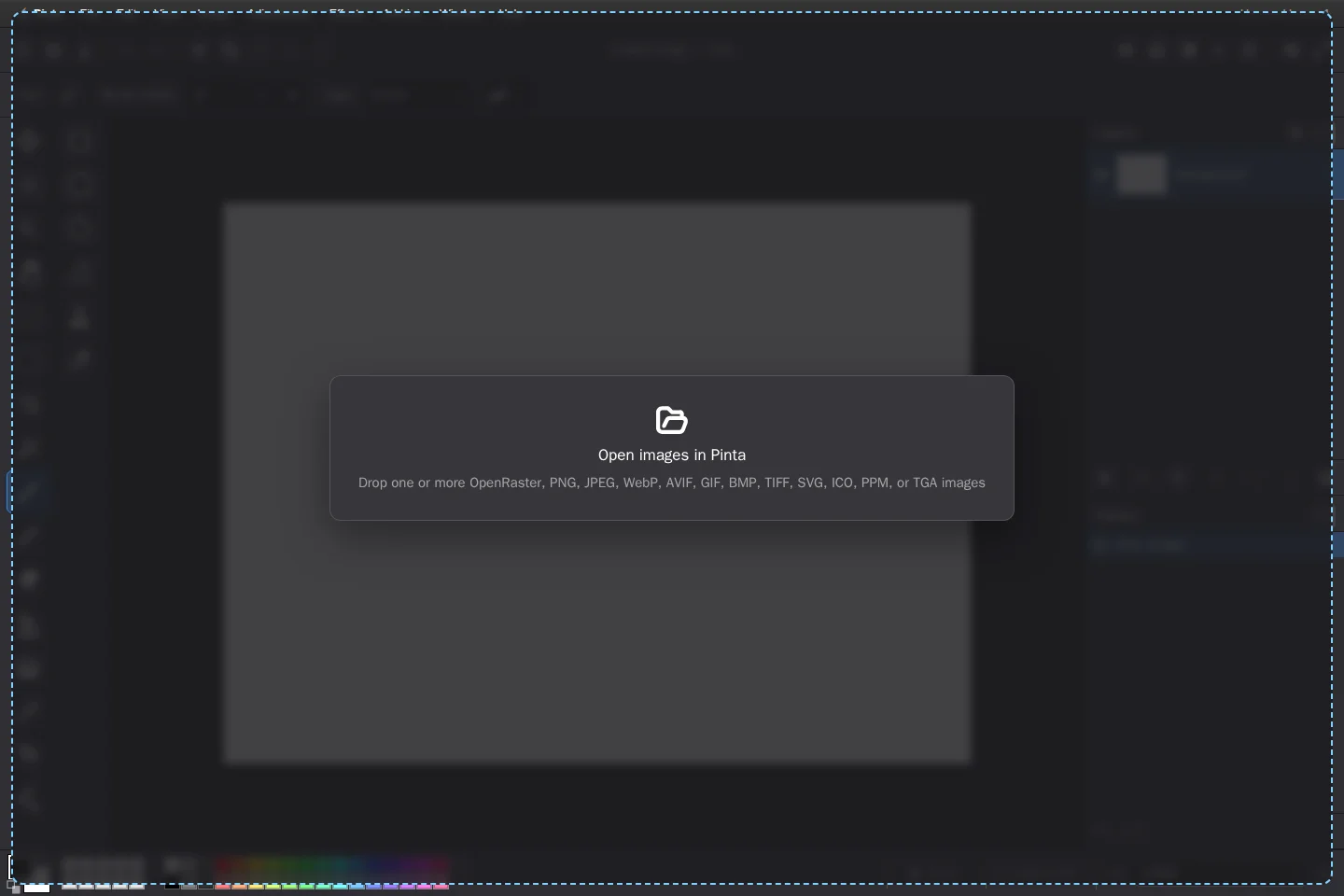
Open artwork and make it layer one -

Trace the portal with a live ellipse -
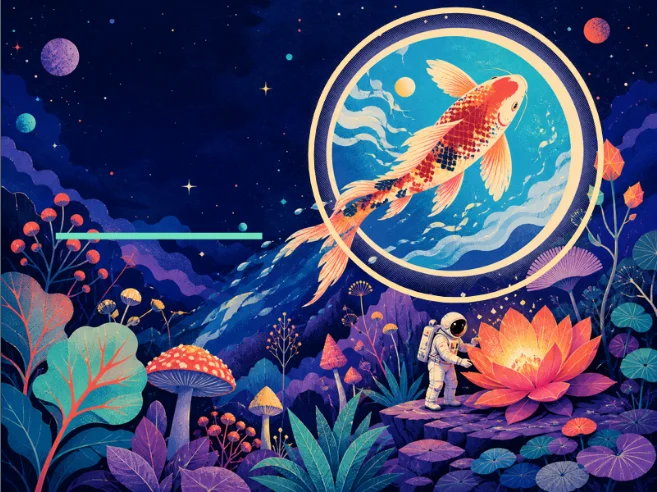
Add a signal line on its own layer -
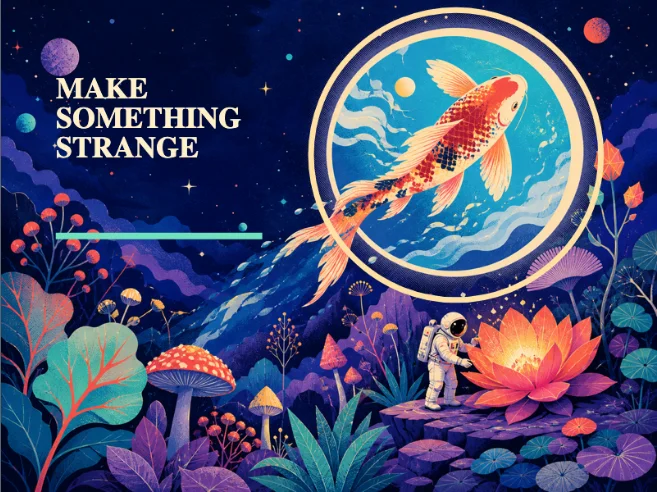
Set the headline directly on canvas
Real compositing
Full layer support
It handles multi-layer projects without complaining
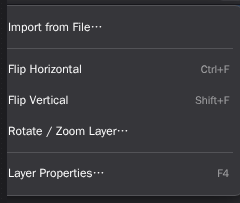
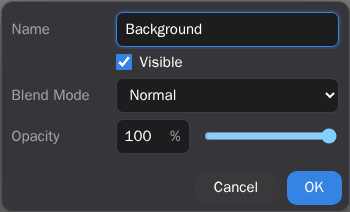
This is the line most free web editors fail to cross. Pinta Online keeps a proper layer stack: add, duplicate, merge down, reorder, hide, rename, flip, rotate, and scale, with per-layer opacity and 16 blend modes. Drop a photo onto the canvas, put your artwork above it, and adjust either one without touching the other.
- Drag and drop files straight onto the workspace
- Per-layer opacity, visibility, and blend mode
- OpenRaster export keeps the stack intact for later
The full toolbox
An impressive toolkit
Everything a quick design actually needs
Rectangle, ellipse, lasso, and magic-wand selections that union, subtract, intersect, and invert. Brush, pencil, eraser, bucket, clone stamp, recolor, and color picker. Lines and curves with draggable control points, five gradient shapes, and on-canvas multiline text. The magic wand in particular is accurate enough to knock a background out on the first try.
- Five selection tools with modifier-aware combine modes
- Editable shapes and curves, not baked-in pixels
- Linear, radial, conical, reflected, and diamond gradients
Not just drawing
It's a real photo editor too
You never have to leave the tab to fix a photo
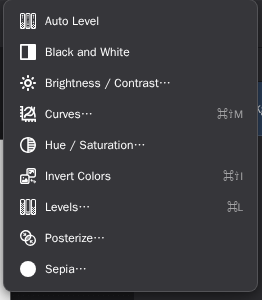
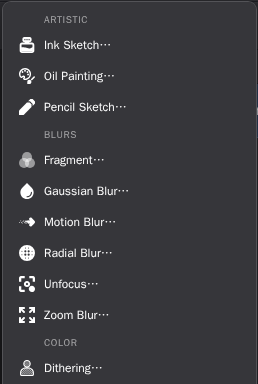
Curves and Levels are the actual dialogs, per channel, with spline control points. Brightness/contrast, hue and saturation, posterize, sepia, and black and white sit next to them. Then there are 55 built-in and optional effects — Gaussian, motion, radial, and zoom blurs, sharpen, red-eye removal, artistic treatments, distortions, noise reduction, and procedural renders like clouds and fractals — all running off the UI thread so the canvas never locks up. Select a face or a background first and the blur stays inside it.
- Curves, Levels, and hue/saturation, per channel
- 46 built-in plus 9 optional worker-backed effects
- Every application lands in a branch-aware undo history
Runs everywhere
Cross-platform, minus the platform
With the formats you already use
There is no Windows build, no macOS build, and no Linux build — there is one editor, and every machine with a current browser gets it. Windows, macOS, Linux, ChromeOS, Android, iPad: same tools, same shortcuts, same files. Nothing is locked in a proprietary format either; save a flat PNG or JPEG for sharing, or OpenRaster when you want the layers back tomorrow.
- OpenRaster
- PNG
- JPEG
- WebP
- AVIF
- GIF
- BMP
- TIFF
- SVG
- ICO
- PPM
- TGA
- OpenRaster
- PNG
- JPEG
- WebP
- BMP
- TIFF
- PPM
- TGA
Before you ask
Is this online paint app really free?
Yes. Pinta Online is free and open source under the MIT X11 license. No account, no trial, no watermark, no subscription.
Do my images get uploaded to a server?
No. Files are decoded, edited, composited, and exported by your own browser. There is no upload step, and restored documents are kept locally in your browser's IndexedDB on that device.
Does it support layers?
Yes — add, duplicate, merge, reorder, hide, rename, rotate, and scale layers, with opacity and 16 blend modes. OpenRaster import and export preserve the whole stack.
Which operating systems does it run on?
Any system with a current browser: Windows, macOS, Linux, ChromeOS, Android, iPad. There is no separate download per platform.
Can I use it offline?
Yes. Install it as a Progressive Web App and the interface starts offline from cache. Opening and saving local files needs no connection.
How is it related to desktop Pinta?
Pinta Online is a browser edition built on Pinta 3.2, reusing the original artwork, shortcuts, and interaction vocabulary. The original C# and GTK desktop app is still available from the upstream Pinta project.

The right tool at the right time
Keep it in a pinned tab.
It will not replace a professional suite, and it is not trying to. It is the thing you reach for when the design has to exist in the next ten minutes — and it is already open.
Start a canvasWant the detailed tour? See every Pinta Online feature or read the user guide.